
On This Page
node -v answers, npm -v doesn't
Here's the pair of lines that sent me down this one, straight from a fresh Ubuntu 24.04 shell:
$ node -v
v18.19.1
$ npm -v
bash: npm: command not found
That's the 'npm' is not recognized error in its Linux clothes. zsh (the default shell on macOS) words it zsh: command not found: npm. On Windows, cmd prints 'npm' is not recognized as an internal or external command, operable program or batch file. and PowerShell says The term 'npm' is not recognized as the name of a cmdlet, function, script file, or operable program. Same problem in four dialects: the shell looked for a program called npm, didn't find one, and gave up. It shows up in your terminal, never in the browser, and it has no production or minified form because nothing of yours has run yet.
The confusing part is the first line. Node is installed. It prints a version. So why can't the shell find npm, the package manager that's supposed to come with it?
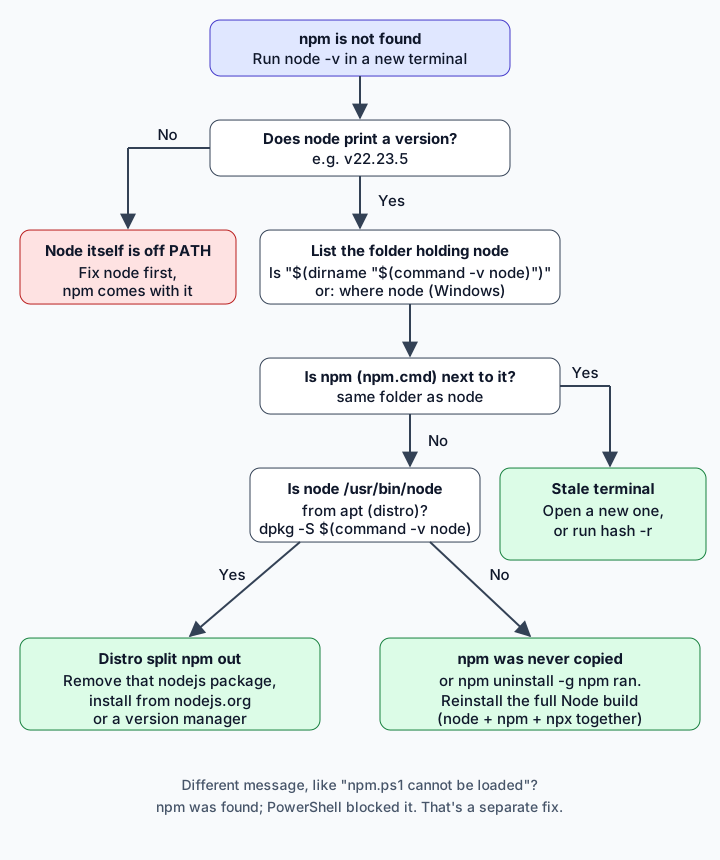
Because npm isn't part of the node program. It's a separate JavaScript program that official Node builds ship in the same folder, side by side. When node works and npm doesn't, the question isn't "is PATH broken?" (that's the node is not recognized article). The question is "why is there no npm next to my node?" I found three ways to end up there, and I reproduced all three.
If node -v also fails, stop here and fix that first. npm can't run without node anyway, and once node is found properly, npm usually comes back with it.
A parcel tracker that never got past npm create
The setup I used is the one a lot of people on Linux hit in their first hour. You want to build a small React app (mine was a parcel tracker: a list of shipments with their status), the tutorial says "install Node.js", and the quickest-looking way on Ubuntu is the package manager that's already there:
sudo apt install nodejs
It finished in about 3 seconds. Then I opened a shell with nothing but the system folders on PATH (PATH is the list of folders your shell searches, in order, when you type a command name) and followed the tutorial:
node -v
npm -v
npx -v
v18.19.1
bash: npm: command not found
bash: npx: command not found
zsh, same machine:
zsh: command not found: npm
Exit code 127 every time, which is the shell's way of saying "no such command anywhere on PATH." And npx (npm's tool for running a package without installing it, which is what npm create vite uses under the hood) is gone too. That's a useful clue: npx always travels with npm, so if both are missing, npm was never installed. If only npx is missing, you're in a different, narrower problem covered in npx: command not found.
My first move was the reflex one: open a new terminal. Same output. I'd half expected that, because the shell wasn't stale. It was looking in the right folders. There was nothing there to find.
Ubuntu's nodejs package lists npm under Suggests
So I asked two questions. Where is the node I'm running, and who put it there?
command -v node
dpkg -S "$(command -v node)"
apt-cache depends nodejs | grep -i npm
/usr/bin/node
nodejs: /usr/bin/node
  Suggests: npm
That last line is the whole story. On Debian and Ubuntu, the nodejs package is only Node. npm is packaged separately, and the nodejs package mentions it as a "Suggests", which apt doesn't install by default. Ubuntu 24.04's nodejs package is 18.19.1, and it doesn't contain a single npm file; dpkg -L nodejs | grep -ci npm printed 0.
This catches people because nodejs.org's own builds never look like this. Every official download, the installers and the archives, bundles npm. I listed the Windows zip for Node 22.23.5 from nodejs.org/dist and its top folder holds node.exe, npm, npm.cmd, npm.ps1, npx, npx.cmd, npx.ps1, corepack and a node_modules folder with npm inside. So tutorials say "install Node, you get npm" and they're right, for the builds they're thinking of.
Why does npm live in a different place than node?
Worth one paragraph, because it makes all three causes in this article obvious.
node is a compiled program, a single binary. npm is JavaScript. It lives in lib/node_modules/npm inside the Node install (on Windows, in node_modules\npm next to node.exe). What you run as npm is a small launcher in the same folder as node. On Linux and macOS it's a symlink (a file that points at another file) to npm-cli.js; on Windows it's npm.cmd for cmd and npm.ps1 for PowerShell. Here's the layout in the Node 22.23.5 Linux build I used for the rest of this lab:
ls "$(dirname "$(command -v node)")"
ls -l "$(dirname "$(command -v node)")/npm"
corepack
node
npm
npx
lrwxrwxrwx 1 dev dev 38 Nov 21 08:41 /home/dev/tools/node-v22.23.5-linux-x64/bin/npm -> ../lib/node_modules/npm/bin/npm-cli.js
So when you type npm, the shell walks PATH, finds that launcher in Node's bin folder, and the launcher starts npm-cli.js with node. Take the launcher away, or the lib/node_modules/npm folder it points to, and node keeps working while npm disappears. That's the pattern behind every case below. The decision path above boils down to "go look in that folder."
sudo apt install npm got me npm 9.2.0 and a Node 18 wall
The fix most people reach for is the one the package manager offers:
sudo apt install npm
It works, in the narrowest sense. A dry run said 0 upgraded, 390 newly installed: Ubuntu packages npm's dependencies one by one as node-* system packages, so you get hundreds of them. The real install took 26 seconds here. Afterwards:
v18.19.1
9.2.0
9.2.0
/usr/bin/npm
/usr/share/nodejs/npm/bin/npm-cli.js
Node 18.19.1, npm 9.2.0, and npx all found. Error gone. So I carried on with the tutorial:
npm create vite@9.3.4 parcel-tracker -- --template react --no-interactive
npm WARN exec The following package was not found and will be installed: create-vite@9.3.4
npm WARN EBADENGINE Unsupported engine {
npm WARN EBADENGINE   package: 'create-vite@9.3.4',
npm WARN EBADENGINE   required: { node: '^20.19.0 || >=22.12.0' },
npm WARN EBADENGINE   current: { node: 'v18.19.1', npm: '9.2.0' }
npm WARN EBADENGINE }
file:///tmp/aptuser/.npm/_npx/84ecc7d043c399bf/node_modules/create-vite/dist/index.js:1
[... minified source line cut]
SyntaxError: The requested module 'node:util' does not provide an export named 'styleText'
    at ModuleJob._instantiate (node:internal/modules/esm/module_job:123:21)
    at async ModuleJob.run (node:internal/modules/esm/module_job:191:5)
    [... lines cut]

Node.js v18.19.1
npm ERR! code 1
npm ERR! path /tmp/aptuser
npm ERR! command failed
npm ERR! command sh -c cva parcel-tracker --template react --no-interactive
There's the wall. create-vite 9.3.4 and Vite 8.3.8 both declare "node": "^20.19.0 || >=22.12.0" in their engines field (npm view vite engines shows it), and Ubuntu's Node 18 is below that. The EBADENGINE lines are npm warning you, and then create-vite crashes on a Node API that didn't exist in 18. I'll admit the styleText line threw me for a second; it reads like a bug in create-vite, but it's Node being too old to have that export. That family of errors has its own guides: Vite requires Node.js version and SyntaxError from a CLI running on an old Node.
So apt install npm trades one error for the next one. Nothing about it is dangerous. On Ubuntu 24.04, though, it pins you to a Node version that modern React tooling has already left behind. I wouldn't do it for React work.
Swap the distro package for a build that carries npm
The fix is to stop using the distro's split packages for Node and install a build that ships node and npm together. Remove what apt put there first, so two Nodes don't fight over PATH:
sudo apt purge nodejs npm
sudo apt autoremove
Then pick one of the routes on the Node.js download page. Its default snippet for macOS and Linux uses nvm, a version manager that installs into your home folder, so no sudo. It also offers prebuilt archives. When I checked on 21 November 2026 the page listed v26.13.1 LTS with npm 11.20.0. My lab ran Node 22.23.5 with npm 10.9.9, which is still inside Vite 8's supported range; pick the LTS the page shows you.
I used the archive route, unpacked into ~/tools/node-v22.23.5-linux-x64, and put its bin folder on PATH for the current user:
echo 'export PATH="$HOME/tools/node-v22.23.5-linux-x64/bin:$PATH"' >> ~/.bashrc
Then a new terminal (a terminal reads PATH once, when it starts):
node -v
npm -v
npx -v
command -v npm
v22.23.5
10.9.9
10.9.9
/home/dev/tools/node-v22.23.5-linux-x64/bin/npm
And the command that failed before, this time to the end:
npm create vite@9.3.4 parcel-tracker -- --template react --no-interactive
cd parcel-tracker
npm install
npm run dev
create-vite v9.3.4

│
◇  Scaffolding project in /home/dev/parcel-tracker...
│
└  Done. Now run:

  cd parcel-tracker
  npm install
  npm run dev

added 24 packages, and audited 25 packages in 3s

9 packages are looking for funding
  run `npm fund` for details

found 0 vulnerabilities

> parcel-tracker@0.0.0 dev
> vite


  VITE v8.3.8  ready in 174 ms

  ➜  Local:   http://localhost:5173/
  ➜  Network: use --host to expose
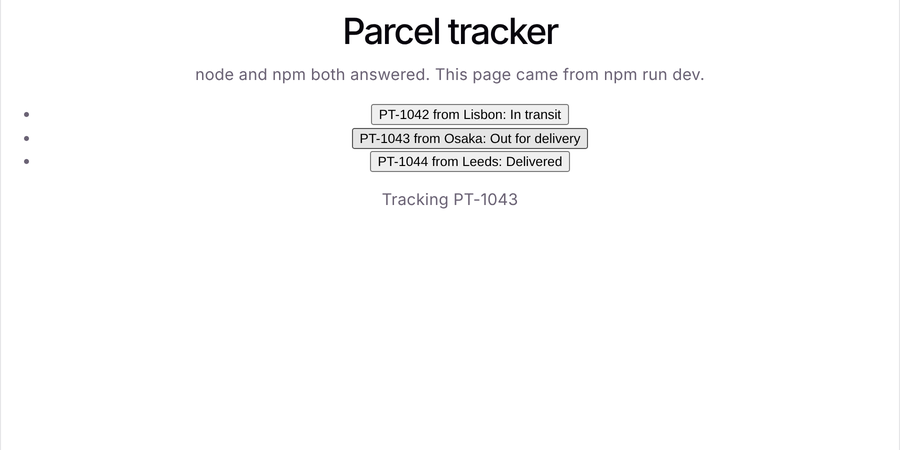
npm ls --depth=0 confirmed React 19.3.1, React DOM 19.3.1, Vite 8.3.8 and @vitejs/plugin-react 6.3.0. I swapped the template's counter for the parcel list and opened it in headless Chromium. The console had the two [vite] connecting... / [vite] connected. lines and React's "Download the React DevTools" hint, which is informational and safe to leave alone. No errors.
If you're on Fedora or another distro, the package names differ and I didn't run those here. The check is the same, though: ask your package manager which package owns $(command -v node), and whether npm is a separate package. If it is, the swap above is the fix.
The folder only held a node binary
Cause two has nothing to do with apt. Sometimes there's no npm because only the node binary was copied somewhere. People do this when they grab Node from another machine, unpack an archive and move only the file they think matters, or write a Docker multi-stage build that copies the node binary into a slim image and nothing else.
I reproduced it by copying the binary on its own into ~/onlynode/bin and putting that on PATH:
$ node -v
v22.23.5
$ npm -v
bash: line 1: npm: command not found
$ ls "$(dirname "$(command -v node)")"
node
That ls is the giveaway. A real Node install has npm and npx next to node. This folder has one file. And no amount of PATH editing helps, because there's no npm anywhere on the machine to point at.
The fix is to install the whole build, not the binary: unpack the full archive (keeping bin and lib together, since the npm symlink points at ../lib/node_modules/npm), or use the installer or a version manager. For Docker, start from an official Node base image or copy the whole install folder rather than one file. Docker gets its own article later, the app can't find a module that's in package.json; I didn't run a container for this one.
"removed 196 packages": npm uninstall -g npm deletes npm
Cause three is my favourite, because npm does it to itself and reports success while doing it.
npm uninstall -g <name> removes a globally installed package. People run it while cleaning up global packages, or after reading an old answer that says "reinstall npm by uninstalling it first." The thing is, npm is itself a global package in Node's install folder. So I made a spare copy of my Node 22.23.5 install, put it on PATH, and tried it:
npm config get prefix
npm uninstall -g npm
npm -v
/home/dev/tools/node-broken

removed 196 packages in 358ms
bash: line 1: npm: command not found
No warning, no "are you sure". 358 milliseconds and npm is gone, npx with it. The folder afterwards:
$ ls ~/tools/node-broken/bin
corepack
node
I went looking for whether this is a bug and found it's documented. npm's own docs page "removal", which ships inside the install at node_modules/npm/docs/content/using-npm/removal.md in npm 10.9.9, opens with sudo npm uninstall npm -g as the way to remove npm. So it's working exactly as designed.
There's a second wording you'll see if you run that in a shell that already used npm once:
removed 196 packages in 322ms
bash: line 1: /home/dev/tools/node-broken2/bin/npm: No such file or directory
bash remembers where it found a command (its "hash" table), so it tries the old path directly and reports the file as missing instead of saying "command not found." Run hash -r (or open a new terminal) and you get the normal message.
The wrong fix here is the obvious one: npm install -g npm. You can't. There's no npm to run it with. The right fix is to put the npm folder back by reinstalling the same Node version over the top. I re-unpacked the same 22.23.5 build into that folder:
$ npm -v
10.9.9
$ npx -v
10.9.9
$ ls ~/tools/node-broken/bin
corepack
node
npm
npx
With a version manager it's the same idea: reinstall that Node version through the manager. With the Windows or macOS installer, run the installer for your version again.
'npm' is not recognized next to a working node.exe
On Windows the reasoning is identical, only the commands change. I didn't run this on a Windows machine. The cmd wording above is the template Microsoft prints in its PowerShell about_Parsing page, and the PowerShell wording comes from the example in about_Try_Catch_Finally, with npm swapped in for their sample command. In cmd:
'npm' is not recognized as an internal or external command,
operable program or batch file.
In Windows PowerShell:
The term 'npm' is not recognized as the name of a cmdlet, function,
script file, or operable program. Check the spelling of the name, or if a path
was included, verify that the path is correct and try again.
First, ask Windows which node.exe it's actually running. In cmd:
where node
where npm
In PowerShell, where is an alias for Where-Object, so use the .exe name:
where.exe node
where.exe npm
Then look inside the folder where node printed:
Get-ChildItem (Split-Path (Get-Command node).Source)
A Node.js install folder from nodejs.org has npm.cmd and npm.ps1 right beside node.exe (that's what the 22.23.5 zip contains). If you only see node.exe, you're in cause two: a copied binary, or a node.exe that belongs to some other program and happens to be earlier on Path. Either way, run the .msi installer from nodejs.org, which the download page recommends for system-wide installs on Windows, and then open a new terminal so it picks up the updated Path.
If npm.cmd is there and cmd still can't find it, the Path entry is missing or the terminal predates the install, which is exactly the problem in the node article; the same steps fix both.
One more Windows trap that looks related but isn't. If PowerShell says npm.ps1 cannot be loaded because running scripts is disabled on this system, npm was found. PowerShell found the npm.ps1 launcher and refused to run it because of its execution policy. That's a different fix, and reinstalling Node won't touch it.
Five checks before you reinstall anything
The whole reproduction, three causes plus the apt detour, took me a bit under an hour, and most of that went into the Node 18 crash, which I didn't see coming. These checks take about a minute and tell you which cause you have:
- Run
node -vin a new terminal. If it fails too, go to the node is not recognized guide first. - Run
command -v node(macOS/Linux) orwhere.exe node(Windows) to see which node you're running. - List that folder. No
npm(ornpm.cmd) there means npm isn't installed with this node, whatever PATH says. - On Debian or Ubuntu, run
dpkg -S "$(command -v node)". If it names thenodejspackage, you're on the distro build: purge it and install from nodejs.org or a version manager. - If the folder has
nodeandcorepackbut nonpm, think back tonpm uninstall -g. Reinstall the same Node version over it.
And a few habits that stop it coming back:
- Never run
npm uninstall -g npm. If you want a different npm version, install it withnpm install -g npm@<version>, which replaces npm instead of deleting it. - Pin the Node version per project with an
enginesfield, so npm warns loudly instead of a CLI crashing on an export it can't find:
package.json (the relevant part):
{
  "engines": {
    "node": "^20.19.0 || >=22.12.0"
  }
}
- Don't
sudo npmyour way around anything. If a global install asks for root, that's a permissions problem with its own fix, covered in EACCES: permission denied on npm install -g. And ifsudo npmsayssudo: npm: command not foundwhile plainnpmworks, that's sudo using its own PATH, explained in the node guide.
Once npm answers, the next thing a first-time React developer usually trips on is running npm in the wrong folder, which is npm ENOENT: Could not read package.json, or running npm run dev before npm install, which gives you vite is not recognized.
Questions people ask when npm goes missing
Do I need to install npm separately from Node.js?
Not if you install from nodejs.org, a version manager like nvm, or the Windows or macOS installers. All of those ship npm and npx next to node; the 22.23.5 Windows zip I listed has npm.cmd beside node.exe. Linux distro packages are the exception: on Ubuntu 24.04, nodejs doesn't include npm and only "Suggests" it.
Is it fine to install npm with apt on Ubuntu?
It installs, but you get the distro's pair: Node 18.19.1 and npm 9.2.0 on Ubuntu 24.04. create-vite 9.3.4 and Vite 8.3.8 need Node ^20.19.0 || >=22.12.0, so npm create vite crashed for me straight after. For React work, use a Node build from nodejs.org or a version manager instead.
Why does npx also say command not found?
npx is a launcher inside the npm package (npm/bin/npx-cli.js). If npm is missing, npx is missing too, and fixing npm brings npx back. If npm works and only npx fails, that's a different problem with its own guide: npx: command not found.
I ran npm uninstall -g npm. Do I have to uninstall Node first?
No. Reinstalling the same Node version over the top puts the lib/node_modules/npm folder and the npm/npx launchers back. That's what I did: same 22.23.5 build unpacked into the same folder, and npm -v printed 10.9.9 again. Other global packages in that prefix stay where they were, and your projects' node_modules folders aren't touched.
npm works in one terminal but not in VS Code's terminal. Same problem?
Usually not. If npm exists next to node but one terminal can't find it, that terminal has a different PATH, often because it was started before you installed Node or because a version manager is only loaded in your shell profile. That case, where the version or presence of Node changes between your terminal, VS Code and CI, is covered in node -v differs between terminal, VS Code and CI.

CODELZ Newsletter
Join the newsletter to receive the latest updates in your inbox.
